
This guide covers a user who is already assigned to an existing project. Company roles and Project Creation Access are managed separately from these project permissions.
How do I change permissions for an existing project user?
1. Open the existing project
Open Projects and open the project you want to manage. Check the project name before reviewing anyone’s access.
2. Open Access, then Users
Select Access in the project sidebar, then review the Users tab.
3. Open the assigned user’s access settings
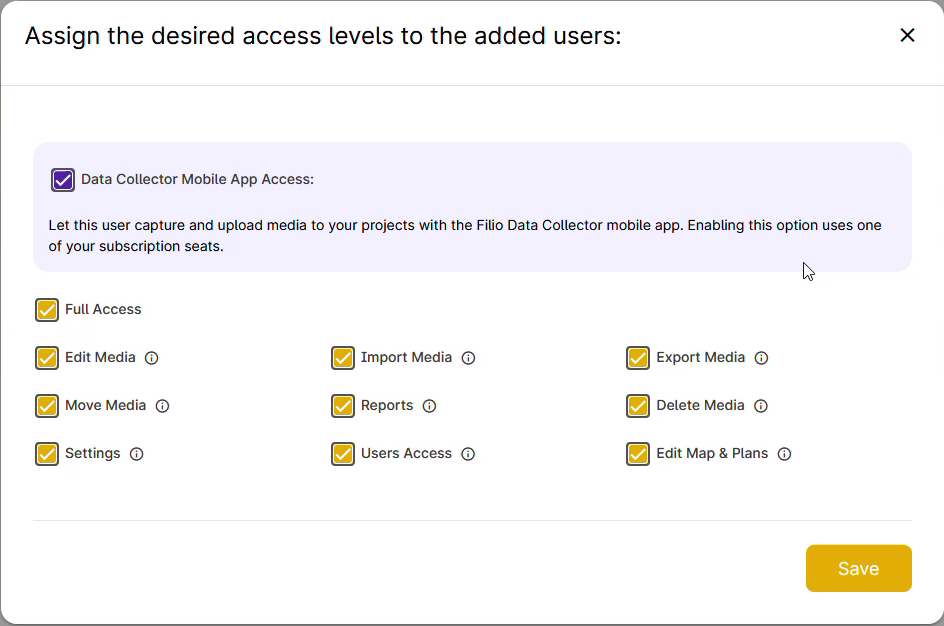
Find the person in the project’s user list. In that user’s Tools column, select the access-control icon shown in the clip. The dialog begins Assign the desired access levels to the added users:. You can open this row action without selecting the user’s checkbox.
4. Review and adjust project permissions
Review the current selections and tick or clear the permissions the user needs. The dialog includes Full Access, Edit Media, Import Media, Export Media, Move Media, Reports, Delete Media, Settings, Users Access and Edit Map & Plans.
Full Access changes the displayed project-permission checkboxes together. Review those selections before saving.
5. Check Data Collector Mobile App Access when needed
Review Data Collector Mobile App Access: if the user needs to capture and upload media with the Filio Data Collector mobile app. The panel states that enabling it uses one of your subscription seats.
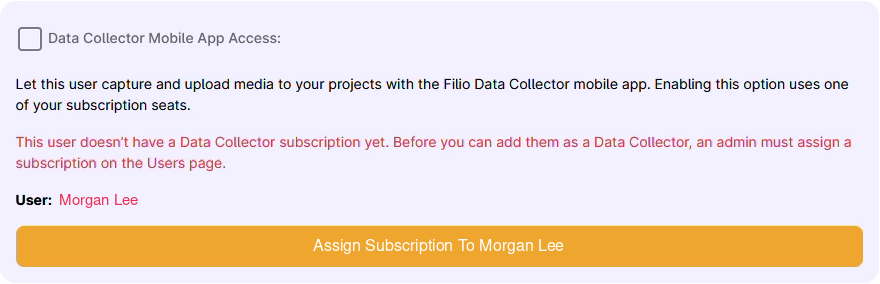
If Filio warns that the user does not have a Data Collector subscription, an administrator must assign a subscription on the Users page. Installing the app does not assign that subscription. See Subscriptions in Filio for the separate subscription workflow.
6. Save and check the same user
Review the selected settings and select Save. Reopen the same user’s access settings in this project and check the values. Ask the user to check the affected action in their own session. If the result differs from the intended access, review it with your project administrator.
Related access tasks
What if the user is missing from the project?
Missing from the company directory? Follow How to Add Users to Your Filio Company Account.
Already in the directory, but not assigned to the project? Follow How to Add a User to One or Multiple Projects in Filio?. The current project’s Users view also includes Import Users From Directory. Return to this guide to review permissions for an assigned user.
How should I review a membership removal?
Review direct membership and any group-related access before removing a user. The adding-users guide covers reviewing and removing project memberships through the company user editor. Check which access remains after the change.
How do groups relate to this review?
Review group assignments alongside the user’s direct project settings. Use How to Create and Manage Groups in Filio? for group setup and member management. Check effective access after group changes.
Related guides
- Share a project — create or manage a project share link.
- Edit users, roles and permissions — review company-level user settings.
- Update project information — edit general project details.